Archive Files · how to
How to Open RAR Files on Mac Without The Unarchiver
Open RAR files on Mac without installing an app, or choose a desktop extractor for regular use. Learn about passwords, multipart archives, and browser limits.
Quick answer
For a single RAR, LeetTools Archive Extractor can list and extract supported files locally without an install. Use a compatible Mac archive app for routine work or multipart sets, and RARLAB command-line tools for detailed diagnostics. Renaming RAR to ZIP does not convert it.
macOS documents a built-in Finder workflow for ZIP, but not an equivalent RAR workflow. Double-clicking a RAR depends on which compatible archive app is installed. Renaming documents.rar to documents.zip does not convert it.
For an occasional file, the LeetTools Archive Extractor can list the contents of a supported RAR and save selected files on your device without an install. A Mac archive app is useful for routine extraction and Finder integration; RARLAB command-line tools offer detailed diagnostics. For multipart sets, choose a desktop extractor that supports the complete set.
Choose the right method
| Method | Installation | Best for | Main limitation |
|---|---|---|---|
| LeetTools Archive Extractor | No | Inspecting a single-file RAR on your device | Browser memory; encrypted input may fail; no multi-volume workflow |
| RARLAB command-line tools | Yes | Terminal users and detailed local diagnostics | No Finder-style interface |
| Keka or The Unarchiver | Yes | Frequent RAR use and Finder integration | Adds a desktop application |
Option 1: Open a RAR file in the browser
- Go to the Archive Extractor.
- Choose Open Archive and select the
.rarfile from your Mac. - Wait for the archive listing. You can search file and folder names.
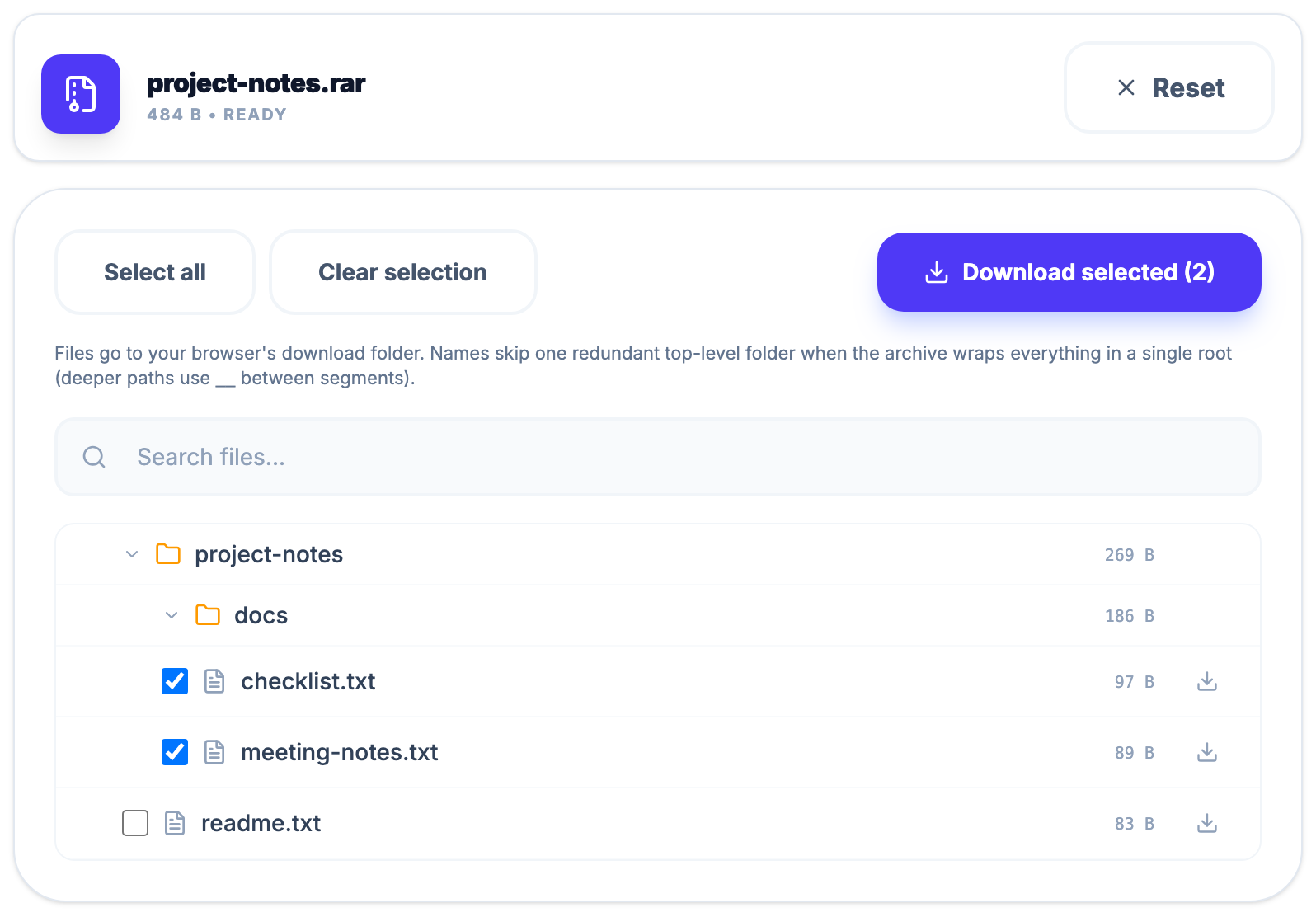
- Download an individual row, or select several rows and choose Download selected.
 Open Full Size
The multi-select action starts separate downloads and uses flattened safe filenames; it does not recreate the archive's directory tree on disk. The listing is useful when you do not want to unpack everything. Common macOS metadata entries such as __MACOSX, .DS_Store, and ._* are hidden from the displayed tree.
The password field may appear for an encrypted archive. You can try it, but password-protected RAR files are not guaranteed to work in the browser, even with the correct password. If it fails, use current RARLAB software, Keka, or The Unarchiver.
What “local” means here
Archive Extractor reads the selected RAR and extracts files in its browser tab. It saves extracted files to your chosen download location only when you download them. LeetTools does not receive the archive or extracted contents. The website still loads scripts and other page resources; local file processing does not mean the site is offline.
Option 2: Use command-line RAR software
As of August 10, 2026, RARLAB's download page lists RAR 7.23 command-line-only trial packages for macOS ARM and x64. RARLAB states that official UnRAR binaries for macOS are distributed as part of its platform packages. Follow the command documentation and license bundled with the selected package.
Command-line software may expose more detailed diagnostics than the browser interface, including messages about a missing volume, damaged archive, unsupported method, or incorrect password.
Do not put a sensitive password directly into a command line if the program can prompt for it. Shell history and local process inspection can expose command arguments.
Option 3: Install a Mac archive app
The Unarchiver is a familiar choice for opening additional archive formats on macOS. Keka also extracts RAR and offers broader archive creation features.
Install a desktop app if RAR files are routine, if you want double-click integration, or if an archive exceeds the resources available to a browser tab. For multipart input, choose an app that explicitly documents multi-volume RAR support; The Unarchiver does so on its current product page.
Password-protected RAR files
A RAR password can encrypt file data, and header encryption can additionally hide filenames, sizes, attributes, comments, and other metadata. LeetTools may offer a password field, but encrypted RAR compatibility is not guaranteed.
RAR is a proprietary format. RARLAB's license prohibits using RAR or UnRAR code to recreate its proprietary compression algorithm, but it does not prohibit users from extracting RAR files. Browser compatibility still varies by application, so use a current desktop tool when encrypted RAR support is required.
Use current RARLAB software, Keka, or The Unarchiver for password-protected RAR files. If a known-good password fails in more than one current extractor, confirm with the sender whether the download is complete and whether every volume is present.
Multipart RAR archives
A set may look like:
project.part1.rar
project.part2.rar
project.part3.rar
RAR 4.x old-style volume sets may instead use extensions such as .rar, .r00, and .r01; RAR 5 does not use that extension-based scheme. The files form one logical archive, so opening a later part by itself is not the same as opening the complete set.
The current LeetTools extractor selects one source archive, so it is not the right tool for multipart RAR. Put every part in the same folder and use a current desktop extractor, beginning with the first volume.
Common failures
The browser runs out of memory
Archive work consumes local memory. Decoded data can be much larger than the compressed input, and high entry counts add overhead. Switch to a desktop tool when the archive exceeds the resources available to the browser tab.
The archive uses an unsupported RAR feature
RAR has evolved across versions. The current browser engine may not open every encrypted or variant RAR, even when a password field is shown. Try RARLAB software, Keka, or The Unarchiver for a second opinion.
The download is incomplete
Compare the size or checksum with the sender's original when possible. A missing or truncated volume can prevent complete extraction of the set.
The file only has a .rar name
An extension is not proof of format. Renamed files and HTML error pages saved by failed downloads can both masquerade as archives. Re-download from the original source or ask the sender to create the archive again.
Should you convert RAR to ZIP?
ZIP is often easier for a recipient to open with built-in operating-system tools. The Archive to ZIP tool can unpack a supported RAR and create a new ZIP on your device, but it also depends on browser memory and is not the right tool for multipart input.
Conversion is not a repair operation. If the RAR is incomplete or unreadable, creating a ZIP will not restore the missing contents.
The practical recommendation
Use Archive Extractor for occasional inspection and selected downloads from a supported single-file RAR. Choose a Mac GUI app for regular extraction and Finder integration. Use RARLAB command-line software for scripts and detailed errors. For multipart or encrypted input, check that your chosen desktop tool supports the archive's features.
This guide summarizes official product documentation and the current LeetTools interface. It deliberately does not claim exhaustive compatibility across every RAR version, encryption method, or multipart layout.
Sources
Related guides
How-to
How to Open 7Z Files on Mac Without Installing an App
Open 7Z files on Mac with Archive Utility, a local browser extractor, or a desktop app. Compare options for previews, passwords, and split archives.
Read guideHow-to
How to Convert 7Z to ZIP on Mac Without Uploading
Convert 7Z to ZIP on Mac with a local browser tool, 7-Zip commands, or a GUI app. Compare password support, metadata changes, and memory limits.
Read guideHow-to
How to Create a Password-Protected ZIP on Mac
Create a password-protected ZIP on Mac with a browser tool, Terminal, or a GUI app. Compare AES, ZipCrypto, recipient compatibility, and local processing.
Read guide