Archive Files · how to
How to Open 7Z Files on Mac Without Installing an App
Open 7Z files on Mac with Archive Utility, a local browser extractor, or a desktop app. Compare options for previews, passwords, and split archives.
Quick answer
Try Archive Utility for a compatible 7Z if you only need to extract it. For a file listing and selected downloads without an install, open LeetTools Archive Extractor. Use a desktop extractor for split archives or encrypted files that the browser cannot open.
You can open a compatible 7Z with Archive Utility on some macOS releases, inspect it in a browser, or use a desktop archiver. Choose based on whether you need the whole archive extracted, a few selected files, or support for encryption and split volumes.
The LeetTools Archive Extractor offers a file listing and selected downloads without installing an app. It processes the archive on your device. If you already have a compatible desktop extractor and only need to unpack everything, that may be the simpler route.
Choose the right method
| Method | Installation | Best for | Main limitation |
|---|---|---|---|
| macOS Archive Utility | Built in on the checked macOS 26.4.1 system | Double-click expand of a compatible 7Z | Varies by macOS release; no inspect-before-extract listing |
| LeetTools Archive Extractor | No | Inspecting a 7Z on your device and saving selected files | Browser memory; encrypted input may fail; no multi-volume workflow |
Official 7zz command | Yes, command-line files | Encryption, repeatable extraction, and advanced variants | Requires Terminal familiarity |
| Keka or The Unarchiver | Yes | Regular Finder-based archive work | Adds a desktop application |
Option 1: Try macOS Archive Utility
On the macOS 26.4.1 system checked for this guide, Archive Utility declares itself Apple's default viewer for the 7Z document type. Finder can therefore route a compatible .7z to Archive Utility unless the user has changed the file association. If the archive expands successfully, no additional app is necessary.
This registration check is not a claim that Archive Utility supports every 7Z compression method, encryption setting, or split layout. If extraction fails, choose another method based on the archive features. Renaming the extension will not fix an unsupported or damaged archive.
Option 2: Open a 7Z file in the browser
- Open the Archive Extractor.
- Choose Open Archive and select the
.7zfile from your Mac. - Wait for the archive index to appear. You can search file and folder names before extracting a file.
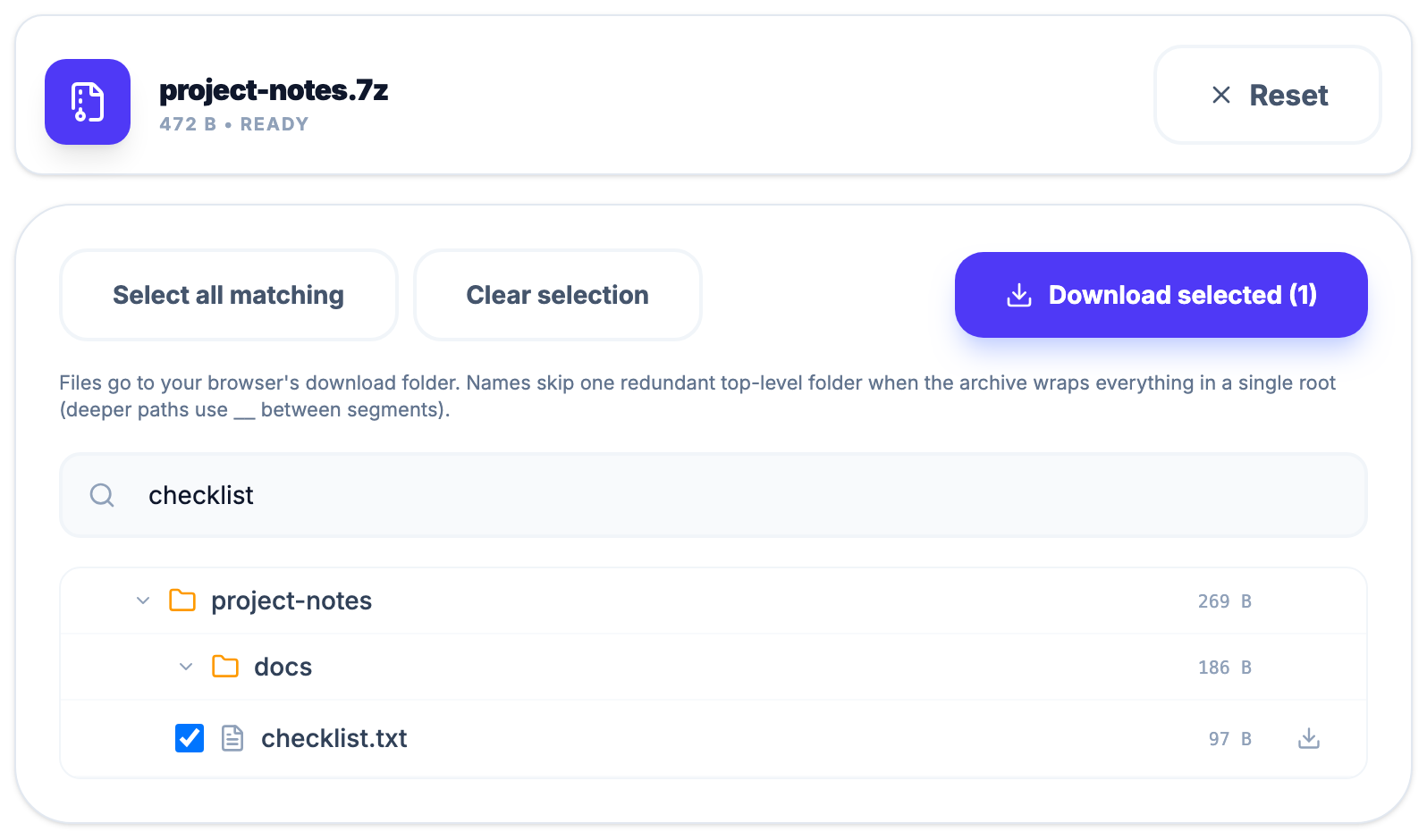
- Use the download control on a row to save one file, or select multiple rows and use Download selected.
 Open Full Size
The current multi-select action starts separate downloads and uses flattened safe filenames; it does not recreate the archive's directory tree on disk. This is a good fit when you want a quick look at an archive rather than a permanent archive manager. Keep the Archive Extractor tab open until the downloads finish.
The password field may appear for an encrypted archive. Try it if you have the password. Encrypted 7Z files are not guaranteed to open in the browser, even with the correct password. If it fails, use 7zz, Keka, or The Unarchiver.
What “local” means here
Archive Extractor reads the selected archive and extracts files in its browser tab. It saves extracted files to your chosen download location only when you download them. LeetTools does not receive the archive or extracted contents. The website still loads scripts and other page resources; local file processing does not mean the site is offline.
Option 3: Use the official 7-Zip console program
Download the macOS console package from the official 7-Zip download page and follow its included installation instructions. Once the 7zz executable is available in Terminal, these are the core operations:
7zz l archive.7z
7zz x archive.7z -ooutput
The first command lists the archive. The second extracts it into an output directory. Use quoted paths when a file or directory name contains spaces, and never paste an untrusted command from an archive into Terminal.
The console route is useful when you need encrypted-input support, repeatable commands, or more detailed diagnostic output than the browser interface exposes.
Option 4: Install a Mac archive app
Keka is a general-purpose macOS archiver that can extract 7Z and create several archive formats. The Unarchiver focuses on opening archive formats through a familiar Mac interface.
Choose a desktop app if you receive 7Z files frequently, need Finder integration, or work with archives that exceed the resources available to a browser tab. Actual memory and disk behavior varies by application.
Password-protected 7Z files
A 7Z password encrypts file contents, and optional header encryption can additionally hide filenames and the archive listing. LeetTools may offer a password field, but encrypted 7Z compatibility is not guaranteed.
If a password fails in a current desktop tool, the archive may also be incomplete, use an unsupported variant, or be part of a split set. Confirm the password and archive completeness with the sender.
Common reasons a 7Z file will not open
It is only one part of a split archive
Names such as backup.7z.001, backup.7z.002, and later parts belong together. The current browser tool accepts one source archive, so use a desktop archiver that can read the complete set from the same directory.
The file is too large for the browser
Browser extraction uses memory on your device. Very large archives or high entry counts can exceed the resources available to a browser tab. A current desktop tool may handle the same workload differently, but results depend on the application, device, and archive.
The download is incomplete or damaged
Compare the file size or checksum with the sender's value when one is available. Re-downloading is often more useful than repeatedly trying different extractors on an incomplete file.
The extension is misleading
Renaming a file to .7z does not convert its format. Ask the sender how it was created, or use 7zz l to obtain a more specific diagnostic.
Should you convert the archive to ZIP?
If the recipient only has Finder's built-in ZIP workflow, converting the files to ZIP can make the handoff easier. Conversion requires unpacking the 7Z data and building a new archive; it is not a simple filename change. See How to Convert 7Z to ZIP on Mac Without Uploading or open the Archive to ZIP tool.
The practical recommendation
Try Archive Utility when you only need to expand a compatible 7Z. Use Archive Extractor to inspect filenames and save selected files without an install. Choose Keka or The Unarchiver for regular Finder-based work, and official 7zz for scripts and detailed diagnostics. Split archives and encrypted files that fail in the browser need a compatible desktop extractor.
The format support and product behavior described here are based on the linked official documentation and the current LeetTools interface. Archive variants differ, so this guide does not claim that every 7Z file will work in every method.
Sources
Related guides
How-to
How to Convert 7Z to ZIP on Mac Without Uploading
Convert 7Z to ZIP on Mac with a local browser tool, 7-Zip commands, or a GUI app. Compare password support, metadata changes, and memory limits.
Read guideHow-to
How to Open RAR Files on Mac Without The Unarchiver
Open RAR files on Mac without installing an app, or choose a desktop extractor for regular use. Learn about passwords, multipart archives, and browser limits.
Read guideHow-to
How to Create a Password-Protected ZIP on Mac
Create a password-protected ZIP on Mac with a browser tool, Terminal, or a GUI app. Compare AES, ZipCrypto, recipient compatibility, and local processing.
Read guide