Archive Files · how to
How to Convert 7Z to ZIP on Mac Without Uploading
Convert 7Z to ZIP on Mac with a local browser tool, 7-Zip commands, or a GUI app. Compare password support, metadata changes, and memory limits.
Quick answer
A 7Z must be extracted and repacked to become a ZIP; renaming it does not convert it. LeetTools Archive to ZIP handles supported archives locally in a browser. Use 7zz or a compatible Mac archiver for split sources, repeatable jobs, or encrypted input that fails in the browser.
You cannot turn a 7Z archive into a valid ZIP by changing its extension. The contents must be decompressed and then written into a new ZIP container.
For an occasional conversion, the LeetTools Archive to ZIP tool can unpack a supported 7Z and create a ZIP on your device. Official 7zz provides an extract-then-compress workflow for Terminal users; Keka offers a GUI workflow. All three can process files locally. Choose based on archive features, metadata requirements, and whether you need to repeat the job.
Why convert 7Z to ZIP?
7Z supports strong compression and features such as solid compression. ZIP usually has broader built-in support across operating systems and business workflows. Apple documents opening ZIP files directly in Finder, which makes ZIP a convenient format when the recipient should not need another application.
Conversion makes sense when:
- a recipient only expects a ZIP;
- an upload form accepts
.zipbut not.7z; - after opening an encrypted source with a supported desktop method, you need a fresh ZIP password for the output;
- you want to remove common macOS metadata entries while repacking.
Keep the original 7Z until you verify the new ZIP. A conversion is a new archive, not a lossless rewrite of every piece of archive metadata.
Choose a conversion method
| Method | Best for | Trade-off |
|---|---|---|
| LeetTools Archive to ZIP | An occasional conversion without installing an app | Browser memory; encrypted input may fail; no multi-volume workflow |
Official 7zz console program | Encrypted input, scripts, and detailed errors | Requires Terminal and a two-step workflow |
| Keka or another Mac archive app | Repeated conversions with a GUI | Requires installing an application |
Option 1: Convert locally in the browser
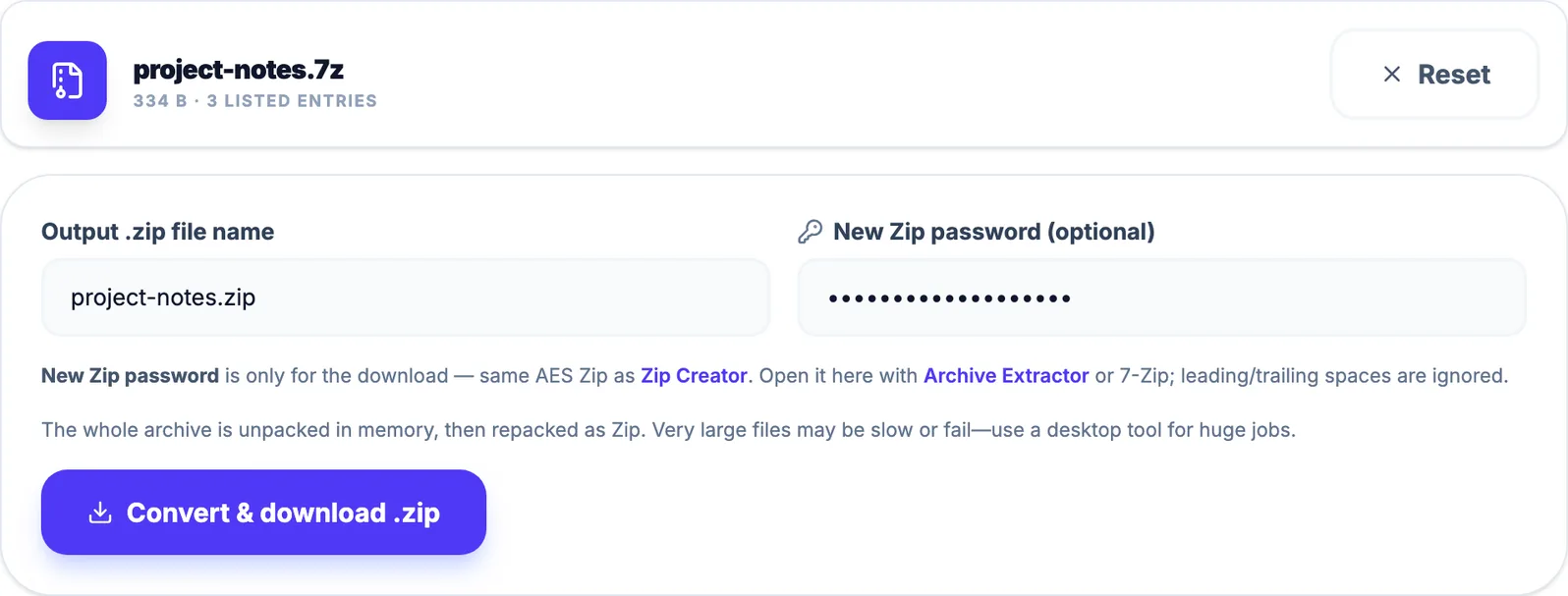
- Open Archive to ZIP.
- Choose Open Archive and select the
.7zsource file. - Confirm the output filename.
- Optionally enter a New Zip password for the downloaded archive.
- Choose Convert & download .zip and keep the tab open until it finishes.
 Open Full Size
The converter may show a source-password field. You can try it, but password-protected 7Z conversion is not guaranteed to work in the browser, even with the correct password. If it fails, use 7zz, Keka, or The Unarchiver. The optional New Zip password applies only to the downloaded ZIP.
What “local” means here
Archive to ZIP decodes the source and builds the output in its browser tab. The source archive, extracted contents, and passwords are not sent to LeetTools. The website still loads page resources; local conversion does not imply offline availability.
What the browser conversion does
The converter opens the source archive, reads its files, skips common metadata junk such as __MACOSX, .DS_Store, and AppleDouble ._* entries, and writes the remaining file contents into a new ZIP.
That behavior is useful for ordinary document and asset bundles, but it has fidelity limits:
- the entire job depends on available browser memory;
- symbolic links, Unix permissions, and executable bits may not be preserved as they were in 7Z;
- empty directory entries may not survive;
- original timestamps are not guaranteed to be reproduced in the output;
- encrypted or uncommon source archives may fail to open, even when a source-password field is shown.
If those details matter, use a desktop tool and verify the archive metadata before deleting the source.
Option 2: Convert with the official 7-Zip console program
The official 7-Zip download page provides a macOS console version. Conversion remains a two-step operation: extract the 7Z, then create a ZIP from the extracted directory.
mkdir converted-files
7zz x source.7z -oconverted-files
cd converted-files
7zz a -tzip ../converted.zip .
Inspect the extraction output before running the final command. Use quoted paths for names containing spaces, and choose a new empty working directory so unrelated files do not enter the ZIP.
For encrypted input, 7zz can prompt for a password. Avoid placing a sensitive password directly in a shell command, where it may be retained in shell history or exposed to other local processes.
Option 3: Use a Mac GUI archiver
Keka can extract 7Z and create ZIP archives. The general workflow is still extract first, review the resulting folder, then compress that folder as ZIP. This is usually the most comfortable route when you perform conversions regularly but do not want a Terminal workflow.
Use a GUI app that explicitly supports the complete volume set for split archives, or when a job needs archive options not exposed by the browser tool.
Password and compatibility considerations
An encrypted source 7Z and an encrypted output ZIP use different containers and may use different encryption schemes. Setting a password on the ZIP does not carry over the original 7Z encryption settings; it creates new protection for the new file.
LeetTools encrypts ZIP file contents with AES-256 when a new password is provided. ZIP filenames and directory paths remain visible without the password, so do not put sensitive information in archive paths. Some built-in or older ZIP extractors have limited AES compatibility. If the recipient cannot open it, use a current AES-capable application or create an unencrypted ZIP and transfer it through another protected channel.
At present, LeetTools ignores leading and trailing spaces in the new ZIP password. Do not rely on those spaces as part of the password.
Why conversion can be slow
The browser cannot merely copy a compressed 7Z stream into a ZIP. It must decode the source entries and compress them again. Working memory can exceed the compressed input size because decoded entry data and output buffers may coexist.
Use a desktop program when the archive size or entry count exceeds the resources available to the browser tab, or when the tab becomes unresponsive. Actual limits depend on the browser, device, archive contents, and compression method.
Verify the new ZIP
Before sharing or deleting the original:
- Confirm that the ZIP opens.
- Compare the expected top-level folders and file count.
- Open a few representative files, especially large or non-ASCII filenames.
- If encrypted, test the password in the recipient's intended extractor.
- Keep the source 7Z until the recipient confirms success.
The practical recommendation
Use Archive to ZIP for an occasional conversion of a supported archive when its metadata limitations are acceptable. Choose official 7zz for repeatable commands and detailed diagnostics, or a Mac GUI archiver for regular conversions without Terminal. For split or encrypted sources, verify that the selected desktop tool supports the input.
The capabilities described here are based on the linked official format and product documentation plus the current LeetTools behavior. They are not a claim that every 7Z variant or every recipient's ZIP program has been exhaustively tested.
Sources
Related guides
How-to
How to Open 7Z Files on Mac Without Installing an App
Open 7Z files on Mac with Archive Utility, a local browser extractor, or a desktop app. Compare options for previews, passwords, and split archives.
Read guideHow-to
How to Create a Password-Protected ZIP on Mac
Create a password-protected ZIP on Mac with a browser tool, Terminal, or a GUI app. Compare AES, ZipCrypto, recipient compatibility, and local processing.
Read guideHow-to
How to Open RAR Files on Mac Without The Unarchiver
Open RAR files on Mac without installing an app, or choose a desktop extractor for regular use. Learn about passwords, multipart archives, and browser limits.
Read guide