Archive Files · how to
How to Create a Password-Protected ZIP on Mac
Create a password-protected ZIP on Mac with a browser tool, Terminal, or a GUI app. Compare AES, ZipCrypto, recipient compatibility, and local processing.
Quick answer
Finder Compress has no password step. LeetTools ZIP Creator can create an AES-256 ZIP locally when you set a password; Terminal zip -e uses legacy ZipCrypto. For a GUI app, check the selected format and encryption method, then test the ZIP with the recipient’s extractor.
Apple's documented Finder Compress workflow creates a normal ZIP and contains no password step. To add a password, use the LeetTools ZIP Creator, Terminal, or a Mac archive app. These methods differ in encryption and recipient compatibility.
The LeetTools ZIP Creator creates an AES-256 ZIP on your device when you set a password. Terminal zip -e uses legacy ZipCrypto. Desktop apps offer different format and encryption options, so check the selected settings rather than relying on the presence of a password field.
Choose the right method
| Method | Encryption/workflow | Best for | Important limitation |
|---|---|---|---|
| LeetTools ZIP Creator | AES-256 file-content encryption | A one-off archive packed on your device | Filenames remain visible; browser resource limits |
macOS zip -e when present | Legacy ZipCrypto | Compatibility-oriented Terminal workflow | Weaker than modern AES ZIP |
| Keka or another GUI app | Format and encryption depend on the app | Frequent encrypted archive work | Keka's current page describes ZIP as Zip 2.0 legacy encryption |
Password protection is not a substitute for good password delivery. Sending the ZIP and its password in the same email gives an attacker who can read that email both pieces.
Option 1: Create an encrypted ZIP in the browser
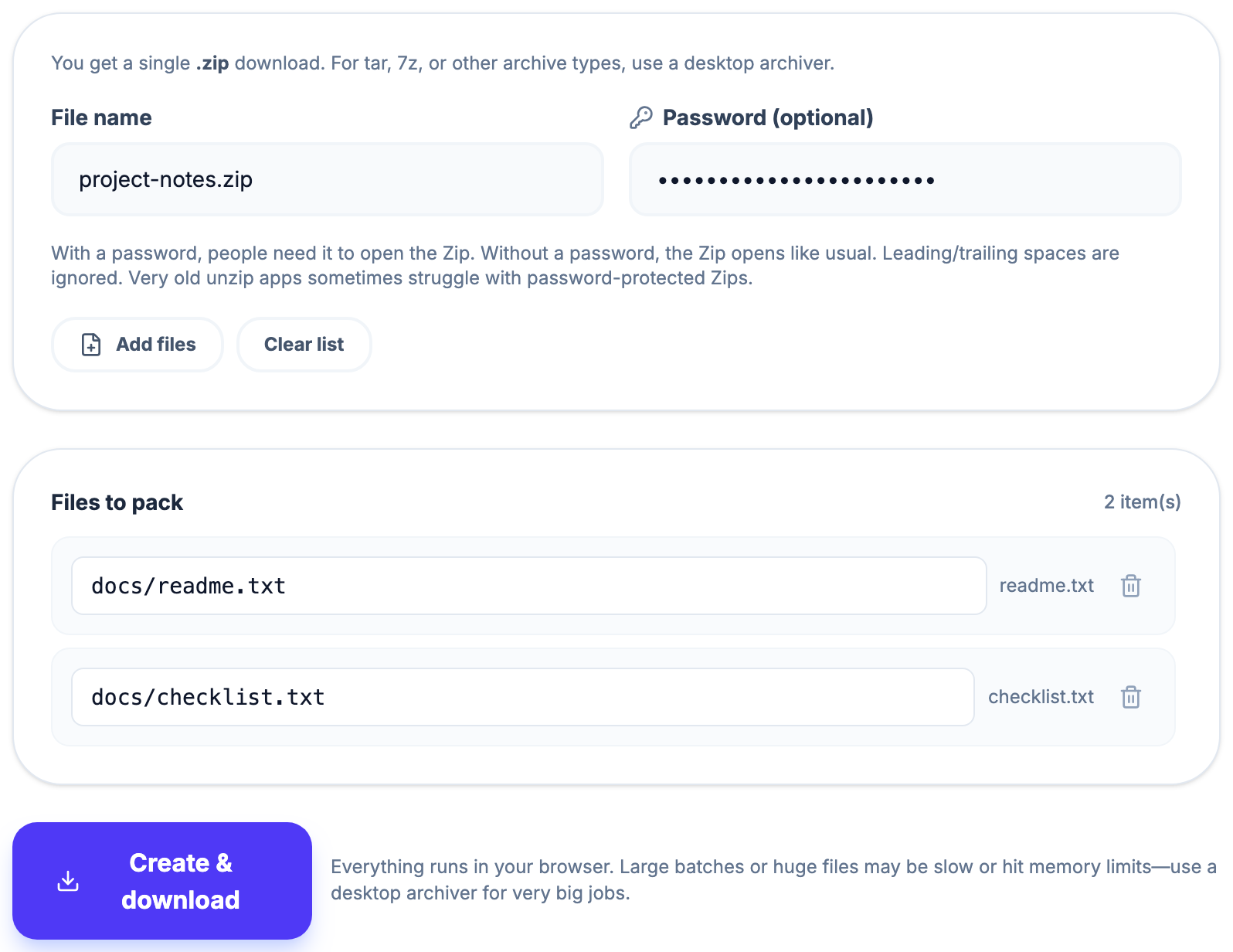
- Open the ZIP Creator.
- Choose Add files and select the files to include.
- Review each path inside archive. A path such as
docs/readme.pdfcreates that folder structure in the ZIP. - Set the output filename.
- Enter a password.
- Choose Create & download and keep the tab open until the ZIP finishes.
 Open Full Size
The current creator adds loose files rather than selecting a whole directory in one action. You can edit the internal path for each row to organize the result, but you cannot add an empty directory by itself.
Password behavior
LeetTools encrypts file contents with AES-256 when a password is present. ZIP filenames and directory paths remain visible without the password because this encryption does not hide the central directory. Do not place sensitive information in archive names or paths. The password is used locally by the ZIP writer and is not sent to LeetTools for processing.
Leading and trailing password spaces are currently ignored. Use a password whose meaningful characters do not depend on those spaces. A long, unique passphrase is generally easier to transmit accurately than a short password full of ambiguous characters.
What “local” means here
ZIP Creator packs and encrypts the selected files in its browser tab. LeetTools does not receive their contents or the password. The website still loads ordinary page resources; local processing does not mean that the site is offline.
When choosing another online tool, check whether it processes files locally or uploads them to a server. An online interface alone does not establish where encryption happens.
Option 2: Use Terminal
On macOS releases that include /usr/bin/zip, the -e option prompts for a password rather than placing it directly in shell history:
zip -er secure-archive.zip folder-to-share
Run the command from the parent directory of the folder you want to archive. The -r option includes nested contents, and -e requests encryption.
This command uses legacy standard ZIP encryption, commonly called ZipCrypto. Many older ZIP tools support it, but Info-ZIP's own documentation describes this encryption as weak. Do not choose it solely because it is convenient when the files require stronger confidentiality, and test the recipient's exact software. Also avoid supplying a password as a visible command argument.
Option 3: Use a Mac GUI archiver
Keka provides a Mac interface for creating archives and setting passwords. As of August 10, 2026, its v1.6.7 product page describes AES-256 for 7Z files and Zip 2.0 legacy encryption for ZIP files. Do not assume that selecting ZIP and entering a password produces the same AES-256 ZIP as LeetTools.
Check the application's selected output format and encryption option before creating the file. A password field alone does not tell you whether the result uses traditional ZipCrypto or AES.
AES ZIP compatibility on Mac
ZIP is a container family with multiple encryption extensions. A program can support ordinary ZIP files but still fail on an AES-encrypted ZIP. Current 7-Zip documentation lists AES-256 support for ZIP, and The Unarchiver currently documents AES ZIP extraction. Do not infer AES support from ordinary ZIP support; test the exact recipient application and version.
Before sending an important archive:
- Create a small encrypted test ZIP using the same method.
- Open it with the recipient's intended application.
- Confirm that filenames and non-ASCII characters display correctly.
- Extract and open at least one representative file.
If compatibility matters more than encryption, consider sending an ordinary ZIP through an end-to-end encrypted transfer channel. If encryption strength matters, agree on a current AES-capable extractor with the recipient.
Organize paths safely
The browser creator lets you set paths such as:
project/readme.pdf
project/images/logo.png
Use forward slashes for ZIP folders. Avoid absolute paths, .. segments, and names that only differ by letter case when the recipient may extract onto a case-insensitive filesystem. LeetTools sanitizes unsafe path segments, which can alter unusual input paths.
The creator currently builds ZIP output at a fixed compression level. It is intended for convenient packaging, not for tuning every compression parameter.
Browser size limits
ZIP creation reads file data into browser memory and performs compression on the device. Working data and output buffers can exceed the total input size, and high entry counts add overhead. A job can become slow or fail when it exceeds the resources available to the browser tab.
For a job that exceeds the browser's resources, use a current desktop archiver and verify its behavior with the intended input. Never assume that “no website size cap” means “no device limit.”
Share the password separately
Use a different communication channel for the password when the threat model justifies it—for example, send the archive through email and communicate the password through an authenticated messaging channel. Confirm the recipient before sending either item.
Do not reuse an account password as an archive password. If you need a fresh secret, generate a unique passphrase and store it in a password manager until the recipient confirms extraction.
Verify before sending
- Confirm the ZIP downloads with the intended filename.
- Reopen it in an AES-capable extractor.
- Test the exact password, including capitalization.
- Check the internal folder layout.
- Open representative extracted files.
- Keep the originals until delivery is confirmed.
The practical recommendation
Use ZIP Creator for an occasional AES-256 ZIP without installing an app. Choose a desktop archiver when you need folder workflows, more archive settings, or resources beyond a browser tab. Terminal zip -e is a compatibility option only when legacy ZipCrypto meets your requirements. Test the finished archive with the recipient's intended extractor.
This article explains documented format and product behavior; it does not claim exhaustive testing across every macOS release or ZIP extractor. Recipient compatibility should be verified with a small sample before relying on an encrypted ZIP for delivery.
Sources
Related guides
How-to
How to Convert 7Z to ZIP on Mac Without Uploading
Convert 7Z to ZIP on Mac with a local browser tool, 7-Zip commands, or a GUI app. Compare password support, metadata changes, and memory limits.
Read guideHow-to
How to Open 7Z Files on Mac Without Installing an App
Open 7Z files on Mac with Archive Utility, a local browser extractor, or a desktop app. Compare options for previews, passwords, and split archives.
Read guideHow-to
How to Open RAR Files on Mac Without The Unarchiver
Open RAR files on Mac without installing an app, or choose a desktop extractor for regular use. Learn about passwords, multipart archives, and browser limits.
Read guide