Generators · how to
How to Create a Strong Password
Learn what actually makes a password strong—length, randomness, and uniqueness—and generate one locally with the LeetTools Password Generator.
Quick answer
A strong password is long, randomly generated, and never reused. Use the LeetTools Password Generator with a length of 16 or more, all four character types enabled, and let the browser create it locally—then store it in a password manager.
A "strong password" is not a clever string you invent once and reuse everywhere. It is a long, randomly generated value that exists exactly once, for exactly one account. That definition sounds strict because the math behind password attacks is strict: attackers try billions of guesses, and the only things that reliably stop them are length and randomness.
The LeetTools Password Generator creates these values locally in your browser. Open it, keep the default length of 16, enable the character sets your target service accepts, and generate. The rest of this guide explains why those settings matter and how to interpret what the tool shows.
What actually makes a password strong
Password strength is measured in guesses, not in how complicated a password looks. Three factors decide how many guesses an attacker needs:
- Length increases the number of possible combinations faster than anything else. Each added character multiplies the search space by the size of the character pool.
- Randomness removes the shortcuts. Patterns like
Password1!, dictionary words, dates, and keyboard walks are exactly what guessing tools try first. - Uniqueness limits the damage of a breach. If one site leaks its password database, a credential that is used nowhere else cannot be used to log into other accounts.
Modern guidance reflects this. NIST SP 800-63B, the widely cited U.S. government authentication standard, emphasizes length as the primary factor and recommends against forcing users to invent complex passwords with arbitrary composition rules. The standard also recommends checking new passwords against lists of known compromised or common passwords. The strength of a password comes from the size of the search space, not from whether it contains an exclamation mark.
Why length beats clever complexity
Consider a random 8-character password from a pool of 90 possible characters: roughly 90⁸ combinations, or about 52 bits of entropy. A random 16-character password from the same pool is 90¹⁶, about 104 bits. Each additional independently chosen character from this pool multiplies the search space by about 90, so the difference between 8 and 16 characters is not "twice as strong" but astronomically stronger.
This is why the Password Generator defaults to 16 characters and lets you go up to 64. Shorter random passwords can still be fine for low-value accounts, but when a service lets you choose, longer is the safer choice.
Generate a strong password
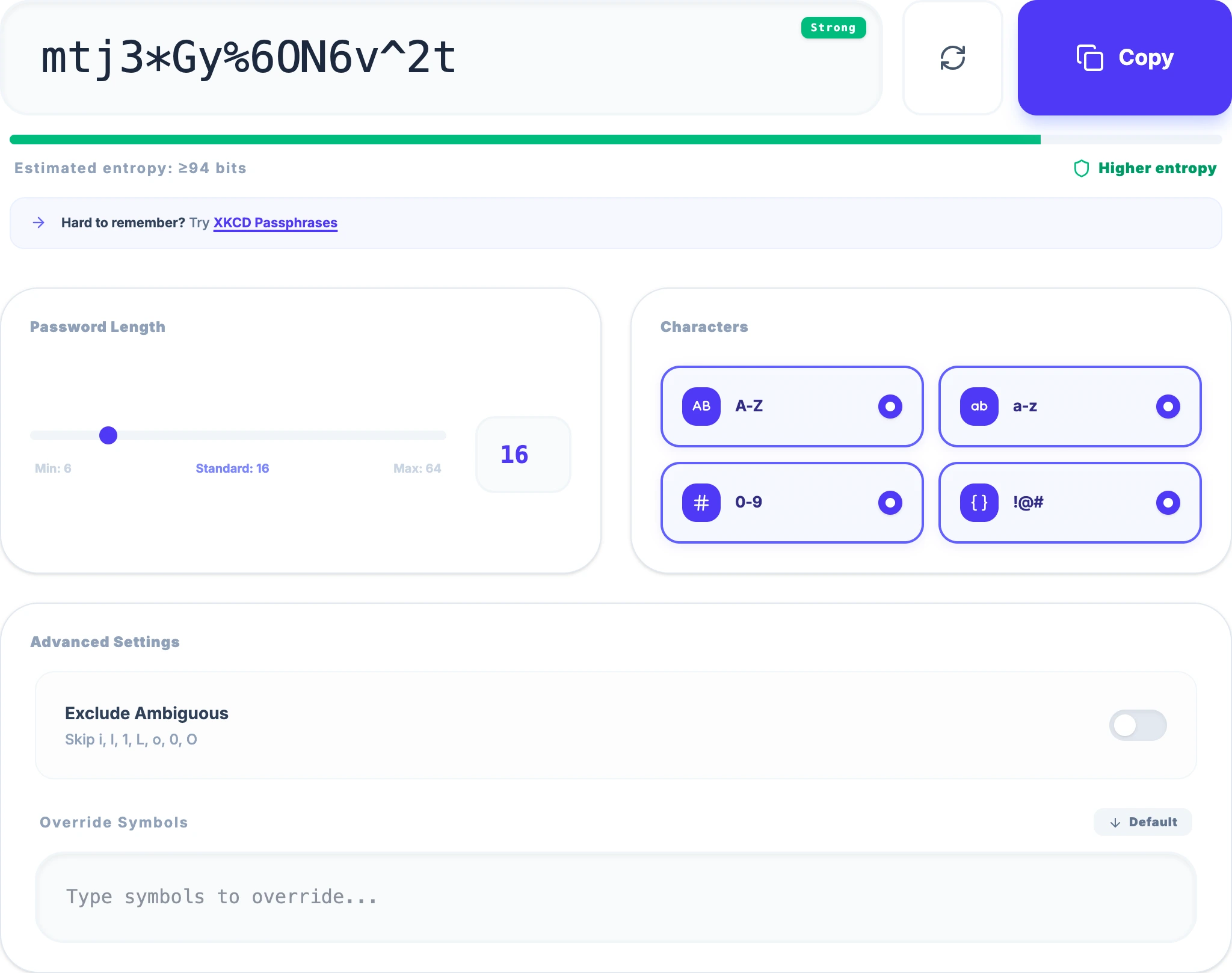
- Open the LeetTools Password Generator.
- Keep Length at 16, or set it higher for accounts that allow it.
- Enable the character sets the target service accepts: uppercase, lowercase, numbers, and symbols.
- Turn on exclude ambiguous characters if you will type the password somewhere that makes
I,l,1,O, and0easy to confuse. - Select Generate and copy the result.
 Open Full Size
The generator guarantees at least one character from each selected, nonempty set, then fills the rest of the length randomly and shuffles the result. It requires the browser's cryptographically secure random source. If that source is unavailable or fails, generation stops with an error; it does not substitute an insecure random source.
Read the strength meter
The strength label estimates a conservative entropy bound for this generator. It uses the actual output length and distinct allowed characters, accounts for the guaranteed character from each selected set, and removes only the ambiguous characters present in those sets. Repeating a custom symbol does not make the password stronger.
| Label | Estimated entropy |
|---|---|
| Very Weak | below 40 bits |
| Weak | 40–60 bits |
| Medium | 60–80 bits |
| Strong | 80–100 bits |
| Very Strong | 100 bits or more |
With all four default character types and 16 characters, the conservative estimate is about 94 bits, in the "Strong" range. The meter assumes random generation; it cannot check breaches, reuse, or the strength of a password you chose yourself.
When a site forces awkward password rules
Many services still impose rules that fight against good practice: exactly 8–16 characters, at least one of each type, no symbols, or a forced reset every 90 days. The generator's controls are there for that reality. Match the service's constraints by adjusting length and character sets, generate a random value, and accept that the password may be slightly weaker than your ideal because the service forced it. The alternatives—reusing a password or weakening it with a predictable pattern—are worse.
What this tool does and does not do
The Password Generator creates new random credentials. It does not:
- evaluate or score a password you already use (the strength meter reflects your selected settings, not an uploaded string);
- check whether a password appears in a known breach or common-password list (NIST recommends such checks; this tool is not that service);
- store, sync, or autofill passwords for you.
Those boundaries matter for where a generated password is useful. Generate locally, then put the result into a password manager or another storage system you control.
Keep every password unique
The most common way a "strong" password fails is reuse. If one site is breached and the leaked value matches your email address, attackers immediately try it against banking, shopping, and email services. A random 16-character password that is used in only one place turns a single breach into a single problem instead of a chain.
Store the generated values in a password manager so the length and randomness cost you nothing to use. If you need a credential that a human can remember without a manager—for example a master password or a local device login—use the Passphrase Generator instead, and follow the guide to create a memorable passphrase.
Local generation
The password is produced in the browser on your device. The generated characters are not sent to LeetTools or any server; nothing you generate here is uploaded so it can be created. The page itself is a normal website and can load its own resources, but the credential generation is local.
Check your setup before relying on a password
- Confirm the length is 16 or more (or the maximum the service allows).
- Confirm the service accepts the character sets you enabled.
- Verify that your browser shows the "Very Strong" or "Strong" label for your settings.
- Save the password in a password manager before navigating away.
- Never reuse it for another account.
If your goal is a credential you can type from memory, switch to the passphrase workflow instead.
Frequently asked questions
What makes a password strong?
Three properties matter most: length, randomness, and uniqueness. A longer password drawn from a large character pool gives attackers more combinations to try, random generation removes patterns and dictionary words, and using a different password for every account stops one leaked credential from unlocking everything else.
Is a 12-character password strong enough?
A randomly generated 12-character password is reasonably strong for many accounts, but 16 or more characters is a safer default. The LeetTools generator defaults to 16 characters because the added length costs nothing to type with a password manager.
Are generated passwords uploaded anywhere?
No. The password is generated locally in the browser with the Web Crypto API and never sent to LeetTools or any server. You decide where to store or use it.
Why does the tool show different strength labels?
The label is based on the size of the character pool you selected and the password length. The estimate is shown as a guide while you tune the settings; the actual defense comes from using a long, random, unique password rather than from the label itself.
Sources
Related guides
How-to
Passphrase vs Password: Which Should You Use?
Compare passphrases and passwords by entropy, memorability, and where each fits. Decide based on how the credential will be stored and typed.
Read guideHow-to
How to Create a Memorable Passphrase
Create a memorable passphrase from random words, generated locally in your browser. Learn how word count, capitalization, and separators affect strength.
Read guideHow-to
How to Choose a Username That Doesn't Link Your Accounts
Choose a username that keeps your accounts separate. Learn how names, birth years, and repeated handles reveal identity, and generate random ones locally.
Read guideExplainer
What Is a QR Code and How Does It Work?
Learn how QR codes store data, how scanners read them, why error correction and borders matter, and what a QR code reveals about privacy.
Read guide