Images · how to
How to Convert WebP to PNG Without Uploading
Convert still WebP images to PNG, retain transparency, and optionally resize a batch. Compare browser conversion, desktop editors, and dwebp commands.
Quick answer
Open Image Converter, add one or more still WebP files, select PNG, keep the original dimensions or set a maximum edge, and convert. The converter exports lossless PNG files; download each result separately or package the batch as a ZIP.
A WebP file does not become a real PNG when you rename .webp to .png. The image must be decoded and then encoded into the PNG format. For a browser workflow without an install, use the LeetTools Image Converter: add one or more WebP files, select PNG, convert in the browser, and download individual results or one ZIP.
This is useful when an app, upload form, or editing workflow asks specifically for PNG. It is not a way to add detail to an image. If the WebP was encoded lossily, converting it to a lossless PNG preserves the decoded result from that point forward; it cannot reconstruct information that the WebP no longer contains.
Choose a conversion method
| Method | Best for | Main trade-off |
|---|---|---|
| LeetTools Image Converter | One or many still WebP files, optional resizing, and one ZIP download | Browser memory and a 48-megapixel output limit |
Google's dwebp | A repeatable Terminal workflow for still images | Requires installing the WebP command-line tools |
| Desktop image editor | One-off export with familiar controls when you already use one | WebP input and batch-export options depend on the editor |
All three methods create a new file and leave the original WebP in place. Keep that source until you have checked the PNG in the application that will use it.
Option 1: Convert WebP to PNG in the browser
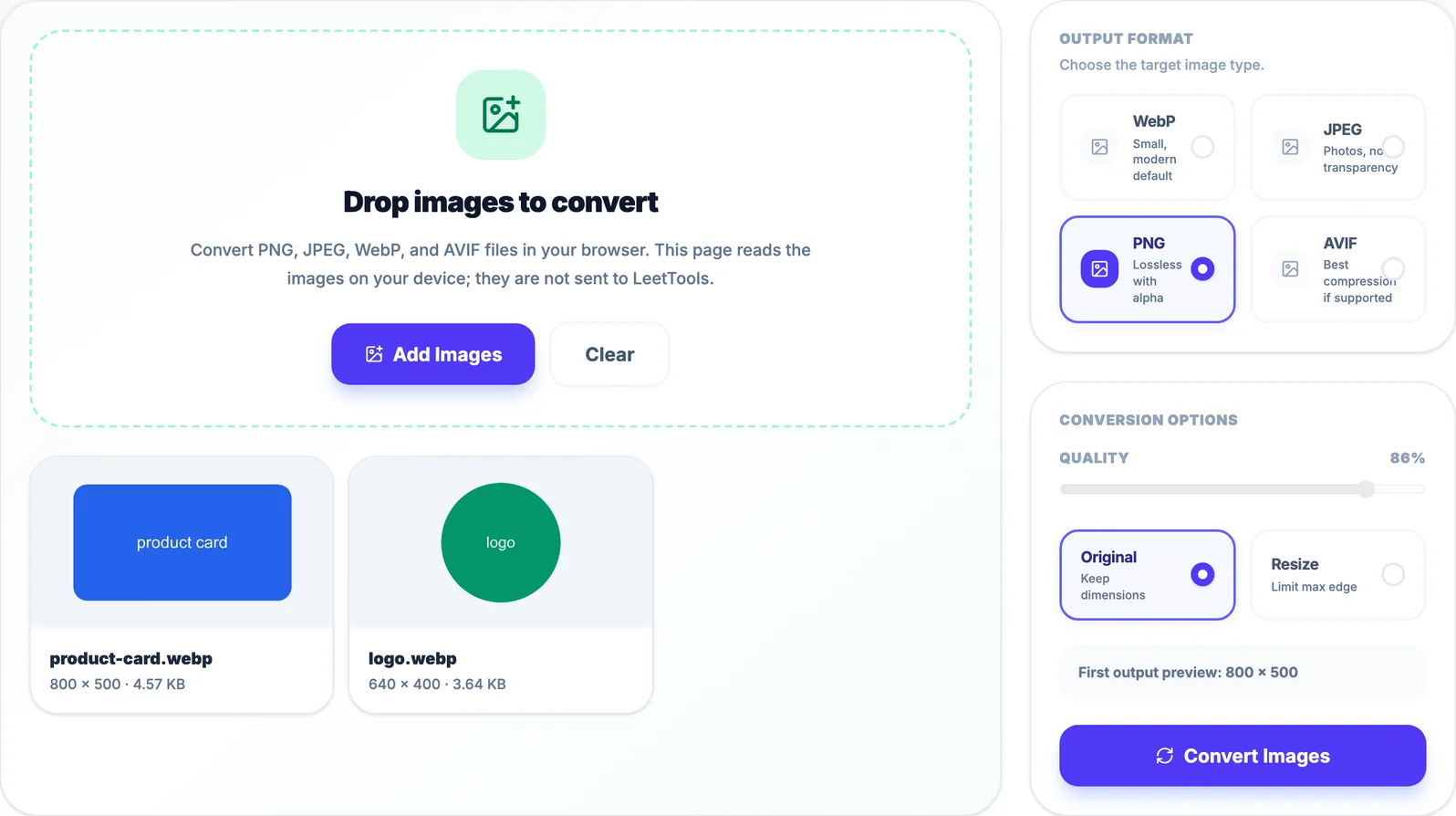
- Open Image Converter.
- Choose Add Images, or drag one or more
.webpfiles into the drop area. - Under Output Format, select PNG.
- Choose Original to keep the source pixel dimensions, or Resize to set a maximum edge.
- Choose Convert Images and keep the tab open while the files are processed.
- Review each output's dimensions and file size.
- Choose Download beside one result, or Download ZIP to save the complete batch as
converted-images.zip.
 Open Full Size
The same format and size options apply to every image in the current batch. Individual output names keep the source base name and replace its extension with .png. If duplicate names enter the ZIP, the packager adds a numeric suffix so that one result does not overwrite another.
Original size versus resizing
Original retains the decoded WebP's width and height. Resize limits the longest edge while preserving the aspect ratio; it does not enlarge an image that is already within the limit. The accepted maximum-edge setting is clamped between 64 and 8000 pixels.
Each output is limited to 48 million pixels. For example, an 8000 × 6000 image is exactly 48 megapixels, while a larger result is rejected. Select Resize and choose a smaller maximum edge if a source exceeds the limit or the browser struggles with memory.
Resizing changes pixel data even though the final PNG compression is lossless. Keep Original when exact source dimensions matter.
Why the PNG quality control is disabled
The quality percentage remains visible because the converter also exports lossy formats, but it is disabled after you select PNG. That is intentional. LeetTools asks the browser canvas to produce image/png and does not pass a quality value for PNG.
The HTML Standard's canvas serialization rules require browsers to support PNG and explicitly exclude PNG from the variable-quality argument. The PNG specification defines PNG as a lossless compressed raster format. A PNG encoder may make different compression choices that affect file size or encoding time, but a JPEG-style visual-quality percentage is not part of this converter's PNG workflow.
Do not interpret the disabled slider as a failed setting. It means the browser is producing the lossless PNG output supported by the canvas API.
What happens to transparency?
WebP can contain an alpha channel in both lossy and lossless modes, according to Google's WebP documentation. PNG also supports an optional alpha channel. For PNG output, LeetTools creates an alpha-enabled canvas rather than painting a solid background, so transparent and partially transparent areas in an ordinary still WebP can remain transparent in the result.
That behavior differs from converting to JPEG, where transparency has to be flattened onto a chosen color. No background-color control appears for PNG because PNG can carry alpha itself.
Transparency preservation here means preserving the rendered appearance and opacity, not copying the source bitstream. The file is decoded, drawn into a browser canvas, and encoded again. Canvas uses its own bitmap and color handling, and the conversion does not promise byte-for-byte identity for color values hidden behind fully transparent pixels. Check logos, shadows, and antialiased edges against both light and dark backgrounds when those details matter.
Privacy boundary
The selected WebP data is read and decoded on the device. Conversion, PNG export, and ZIP packaging happen in the Image Converter tab; the source images and converted outputs are not sent to LeetTools to perform the conversion.
The page can still load ordinary site resources and analytics over the network. “Without uploading” refers specifically to the selected and generated image bytes, not to a claim that opening a web page creates no network traffic at all.
Option 2: Use Google's dwebp in Terminal
For a scriptable still-image workflow, Google's official WebP tools include dwebp. Install the WebP command-line tools for your operating system from the official distribution, then run:
dwebp input.webp -o output.png
The official dwebp manual says PNG is the default output format and documents the command above. It also explicitly says that dwebp does not support animated WebP input. Quote paths that contain spaces:
dwebp "source images/product card.webp" -o "converted images/product card.png"
Use this route when you want a reproducible Terminal command or need to integrate conversion into a local script. The browser tool is usually simpler when you want previews, optional maximum-edge resizing, and a ZIP containing multiple outputs.
What conversion preserves and changes
| Property | Current browser behavior |
|---|---|
| File format | A new static PNG is created |
| Width and height | Preserved with Original, or proportionally reduced with Resize |
| Transparency | Carried through the alpha-enabled canvas for ordinary still images |
| Visual quality control | Disabled for PNG; canvas PNG export is lossless |
| Source metadata | Not copied as a preservation workflow |
| Animation | Not retained in the static PNG output |
| Original file | Left unchanged on your computer |
The metadata caveat is important for photography and publishing. The converter creates a new bitmap export; it is not designed to transfer EXIF, XMP, camera data, editing history, or every source color-profile detail. Keep the WebP if any original metadata matters, and inspect the output in a color-managed target application when color accuracy is critical.
Why the PNG can be much larger
Google describes WebP as supporting both lossy and lossless compression and reports substantial size advantages in its web-focused comparisons. PNG is also compressed, but it stores its output pixels losslessly. A photographic WebP can therefore turn into a much larger PNG even though both files have the same width and height.
The larger number does not mean the conversion recovered quality. It usually reflects a different encoding goal. Choose PNG when you need its workflow compatibility or transparency behavior. If the real goal is smaller web assets, keep WebP or follow the batch image-to-WebP workflow instead.
Verify the converted PNG
Before deleting or sharing anything:
- Confirm that the filename ends in
.pngand opens in the target app. - Compare its width and height with the intended setting.
- View transparent edges on light and dark backgrounds.
- Zoom into text, gradients, and sharp lines to check the decoded source quality.
- Confirm that a batch ZIP contains every expected output.
- Keep the original WebP if animation, metadata, or future re-encoding matters.
If the next step is making one long image from several results, use Image Stitcher or follow the guide to combine screenshots into one image.
The practical recommendation
Use Image Converter for one or many reasonably sized still WebP files when you need previews, optional downscaling, individual downloads, or one ZIP. Use a desktop image editor when you already have one open and want one-off export control. Use dwebp when you prefer a repeatable Terminal command.
Whichever route you choose, remember the central limitation: PNG output is lossless, but the overall conversion cannot undo prior lossy WebP compression. Verify transparency, dimensions, and target-app compatibility, then keep the source until the new workflow is complete.
Frequently asked questions
Are WebP files uploaded during browser conversion?
No. LeetTools decodes, renders, exports, and packages the selected image data in the browser. The page can still make ordinary requests for site resources and analytics; the no-upload claim applies to the source and converted image bytes.
Does converting WebP to PNG improve image quality?
No. PNG stores the newly rendered pixels losslessly, but it cannot restore detail already removed by lossy WebP compression. The PNG may be larger without looking sharper.
Does WebP-to-PNG conversion keep transparency?
LeetTools uses an alpha-enabled canvas for PNG, so transparency in an ordinary still WebP can carry into the PNG. Check important edges after conversion because this is a pixel re-encode, not a byte-for-byte copy.
Why is the quality slider disabled for PNG?
PNG is the converter's lossless canvas output. The tool omits the quality argument for PNG, and the HTML canvas standard does not apply its variable-quality control to PNG serialization.
Sources
Related guides
How-to
How to Batch Convert Images to WebP
Batch convert PNG, JPEG, WebP, and AVIF images to WebP with shared batch settings. Adjust quality or maximum dimensions, then download files or one ZIP.
Read guideHow-to
How to Combine Screenshots Into One Image
Combine screenshots horizontally, vertically, or in a grid. Set spacing and image scale, choose export bounds, and save one PNG, JPEG, or WebP.
Read guideHow-to
How to See What Data a Website Sends
Use Chrome or Edge DevTools to see what data a website sends. Real screenshots explain file uploads, request payloads, and form data sent before submission.
Read guide